Resources


Introduction
EBPP Hosted Web Forms provides a simple way to capture payments without the customer leaving the Client website. The payment form is served from EBPP and can be easily integrated with the Client website. This reference guide discusses the ways and means in which Hosted Web Forms can be used by Clients.
How it works
Customer’s payment information is securely collected without posting it to Client’s server by tokenizing it in EBPP.
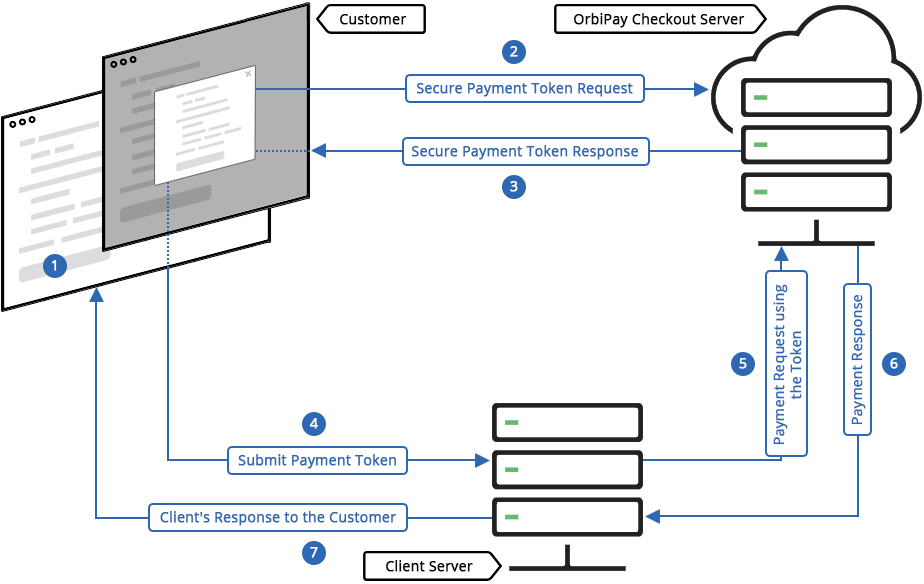
NOTE: Hosted Web Forms for capturing payments is loaded securely, over HTTPS, from EBPP servers and rendered on Client’s payment page.
- Load Payment Form: The payment form is served when the customer clicks on the “Pay” button on the client’s payment page.
- Secure Payment Token Request: Customer fills in the required data and clicks on the “Pay” button on the payment form that, in turn, initiates a request to create a secure payment token.
- Secure Payment Token Response: EBPP responds with a secure payment token to the payment form.
- Submit Payment Token: The secure payment token is submitted to Client’s server along with other details.
- Payment Request using the Token: Client’s server initiates a request to EBPP to create a payment using the token after validating the token with the help of the Hosted Web Forms SDK.
- Payment Response: EBPP processes the payment request and responds with the appropriate response.
- Client’s Response to the Customer: The Client responds to the customer based on the payment response received from EBPP.
Developer Guide
This section describes how to integrate Hosted Web Forms with client website using the SDKs provided. It consists of two parts, namely,
- Web UI Integration and
- Server-side Integration.
Please refer the latest version here
Web UI Integration
This section outlines the UI development effort required to integrate Hosted Web Forms with client website using
- Simple Integration
Simple Integration
Clients can integrate our browser SDK by specifying the JS Path (JS URL) on their payments page. The payment form loads in an iframe on Client’s payment page. Simple integration, in turn, comes in two flavors – Overlay Form and Inline Form. The Overlay form appears as an overlay on Client’s payment page, whereas the Inline Form is embedded in Client’s payment page. Logo, styles and form elements for Hosted Web Forms can be configured by Client.
NOTE: Below code snippets use Production URLs(https://jsco.billerpayments.com).
For Sandbox use https://sbjsco.billerpayments.com.
Step 1:
Create an HTML control (input or button) with the id “orbipay-checkout-button” on Client’s payment page to open the
Payment Form or Add Funding account or Update Funding Account from the Hosted Web Forms
<button id="orbipay-checkout-button">Pay</button>Step 2:
Hosted Web Forms browser SDK can be integrated by including below HTML form enclosed with script in client payment page. All the parameters used are discussed below.
<form id="orbipay-checkout-form" action="/your-app/post-secure-token"  method="POST">
<script id="orbipay-checkout-script"
     src="https://jsco.billerpayments.com/app/opco/v4/scripts/checkoutofsc.js"
     data-client_key="2020XX0711"
     data-api_event="create_payment"
     data-amount="99.99">
</script>
</form>
<form id="orbipay-checkout-form" action="/your-app/post-secure-token" method="POST">
<script id="orbipay-checkout-script"
src="https://jsco.billerpayments.com/app/opco/v4/scripts/checkoutofsc.js"
data-client_key="2020XX0711"
data-api_event="create_funding_account">
</script>
</form><form id="orbipay-checkout-form" action="/your-app/post-secure-token" method="POST">
<script id="orbipay-checkout-script"
src="https://jsco.billerpayments.com/app/opco/v4/scripts/checkoutofsc.js"
data-client_key="2020XX0711"
data-api_event="update_funding_account">
</script>
</form>Clients can override the default form submit with custom Javascript events. For example,
<form id="orbipay-checkout-form" action="/your-app/post-secure-token"  method="POST"  onsubmit="post_secure_token();">
     <script id="orbipay-checkout-script"
          src="https://jsco.billerpayments.com/app/opco/v4/scripts/checkoutofsc.js"
          data-client_key="2020XX0711"
          data-api_event="create_payment"
          data-amount= "99.99">
     </script>
</form>


function post_secure_token()
{
//<your code goes here>
form.submit();
}
For Inline (embedded iFrame) integration, keep below placeholder in Client payment page along with the Checkout Button
<div id="orbipay-checkout-iframe-div"></div>
Parameter Options:
Required Parameters:
| Parameter name | Description | Example |
| data-client_key | Unique client key issued by EBPP to the Client | 2020XX0711 |
| data-customer_account_reference | Unique customer account reference sent by the client. It could be an order reference number or a loan account number or a policy number. | 8492APR042018LOAN |
Desired Parameters:
| Parameter name | Description | Example |
| data-amount | The amount for which the payment has to be initiated. It is mandatory for the create_payment api_event. NOTE: Please round off the value to 2 decimals. |
99.99 |
| data-customer_name | Name of the customer. Can provide complete name. It will be returned in the last_name field of the API response | Joe Smith |
| data-customer_reference | Unique customer reference sent by the client. The customer reference which can be shared by the client with EBPP. | 32874328 |
| data-customer_email | email id of the customer | joe@example.com |
| data-api_event | To invoke the respective API. If no value is passed, then by default, Hosted Web Forms’ payment form will be rendered to the customer. | Allowed values: data-api_event=”create_payment” data-api_event=”create_funding_account” data-api_event=”update_funding_account” |
| data-payment_reference | Unique payment reference sent by client. It is used to identify the payment in EBPP | PAY123456 |
| data-image_url | Relative or absolute URL of the client’s logo | Absolute URL: https://<your-domain>/your_payment_page/logo.png Or Relative URL: /your_payment_page/logo.png |
| data-image_url | Relative or absolute URL of the client’s logo | Absolute URL: https://<your-domain>/your_payment_page/logo.png Or Relative URL: /your_payment_page/logo.png |
| data-payment_option | Default payment method to launch the payment form. If nothing is passed, then the payment form is launched with Bank and Card options. | data-payment_option=”” data-payment_option=”bank” data-payment_option=”card” data-payment_option=”credit_card” data-payment_option=”debit_card” |
Optional Parameters:
| Parameter name | Description | Example |
| Address of the payer’s funding account. :
data-address_line1 |
Address of the payer’s funding account. The address is pre-populated on the Hosted Form. The customer can click on ‘Edit Address’ field to make corrections or enter a new address. | 1551 South Washington Ave, Suite 130 Piscataway NJ USA 08854 |
| data-form_width data-form_height |
Height and width of the Form. For, inline integration, these parameters are appropriate. | data-form_width=”100%” data-form_height=”750px” |
| data-payment_option_readonly | Defaults the payment method option based on the configuration by the Client. If the data-payment_option value is bank, then, on the Form (Payment, Add funding account), New Bank account is selected by default and the dropdown is disabled. This option is used in conjunction with data_payment_option parameter | data-payment_option_readonly=’true’ data-payment_option_readonly=’false’By default, the value is false. Example: |
| data-fee_amount | Fee amount sent by the client. It will be added to the payment amount before processing the transaction.
Use this option only when the fee is calculated by the Client. Using this option Hosted form will be able to display the break-up of the total payment amount. |
data-fee_amount=”0.70″
The below screenshot shows the Amount details section. This includes, Payment amount, fee amount and total amount to be paid.
|

All the parameters mentioned in the table, can be assigned using setXXX Javascript functions or directly from the script tag’s data-xxx attributes.
OrbipayCheckoutSimple.setClientKey("2020XX0711");
OrbipayCheckoutSimple.setApiEvent("create_payment");
OrbipayCheckoutSimple.setImageUrl(" /your_payment_page/logo.png");

OrbipayCheckoutSimple.setCustomerAccountReference("8492APR042018LOAN");
OrbipayCheckoutSimple.setCustomerName("Joe Smith");
OrbipayCheckoutSimple.setCustomerReference("32874328");
OrbipayCheckoutSimple.setCustomerEmail("joe@example.com");

//Set Payment amount and fee amount
OrbipayCheckoutSimple.setAmount("99.99");
//Use this option only if the fee amount is calculated by the Client.
OrbipayCheckoutSimple.setFeeAmount("1.50");


//Set payment method as card in the Payment form.
OrbipayCheckoutSimple.setPaymentOption("card");
//To disable payment method dropdown box.
OrbipayCheckoutSimple.setPaymentOptionReadOnly("true");
OrbipayCheckoutSimple.setPaymentReference("PAY123456");

//Account holder address
OrbipayCheckoutSimple.setAddressLine1("Suite 1");
OrbipayCheckoutSimple.setAddressLine2("Country Road");
OrbipayCheckoutSimple.setCity("Somerset");
OrbipayCheckoutSimple.setState("NY");
OrbipayCheckoutSimple.setZipCode1("08782");

//Appropriate for Inline form integration.
OrbipayCheckoutSimple.setFormWidth("100%");
OrbipayCheckoutSimple.setFormHeight("750px");

//If the client has any meta or custom fields.
OrbipayCheckoutSimple.setCustomFields({"cdf001":"bank"});
//Account holder address
OrbipayCheckoutSimple.setAddressLine1("Suite 1");
OrbipayCheckoutSimple.setAddressLine2("Country Road");
OrbipayCheckoutSimple.setCity("Somerset");
OrbipayCheckoutSimple.setState("NY");
OrbipayCheckoutSimple.setZipCode1("08782");

//Appropriate for Inline form integration.
OrbipayCheckoutSimple.setFormWidth("100%");
OrbipayCheckoutSimple.setFormHeight("750px");

//If the client has any meta or custom fields.
OrbipayCheckoutSimple.setCustomFields({"cdf001":"bank"});
//Appropriate for Inline form integration.
OrbipayCheckoutSimple.setFormWidth(“100%”);
OrbipayCheckoutSimple.setFormHeight(“750px”);
//If the client has any meta or custom fields.
OrbipayCheckoutSimple.setCustomFields({“cdf001″:”bank”});
OrbipayCheckoutSimple.setClientKey("2020XX0711");
OrbipayCheckoutSimple.setApiEvent("create_funding_account");
OrbipayCheckoutSimple.setImageUrl(" /your_payment_page/logo.png");
//Create a funding account for an existing customer.
OrbipayCheckoutSimple.setIdCustomer("25878954");
//If the customer account reference already exists in the system,
//then this API creates a funding account for the existing customer only.
//Otherwise, it creates a new customer and in turn creates a funding account.
OrbipayCheckoutSimple.setCustomerAccountReference("8492APR042018LOAN");
OrbipayCheckoutSimple.setCustomerName("Joe Smith");
OrbipayCheckoutSimple.setCustomerReference("32874328");
OrbipayCheckoutSimple.setCustomerEmail("joe@example.com");
//Type of account to create. Either card or bank. Example to create a card account.
OrbipayCheckoutSimple.setPaymentOption("card");
//To disable payment method dropdown box.
OrbipayCheckoutSimple.setPaymentOptionReadOnly("true");
//Account holder address

OrbipayCheckoutSimple.setAddressLine1("Suite 1");

OrbipayCheckoutSimple.setAddressLine2("Country Road");

OrbipayCheckoutSimple.setCity("Somerset");

OrbipayCheckoutSimple.setState("NY");

OrbipayCheckoutSimple.setZipCode1("08782");
//Appropriate for Inline form integration.
OrbipayCheckoutSimple.setFormWidth("100%");
OrbipayCheckoutSimple.setFormHeight("750px");
//If the client has any meta or custom fields.
OrbipayCheckoutSimple.setCustomFields({"cdf001":"bank"});
OrbipayCheckoutSimple.setPaymentOption("card");

//To disable payment method dropdown box.

OrbipayCheckoutSimple.setPaymentOptionReadOnly("true");

//Account holder address

OrbipayCheckoutSimple.setAddressLine1("Suite 1");

OrbipayCheckoutSimple.setAddressLine2("Country Road");

OrbipayCheckoutSimple.setCity("Somerset");

OrbipayCheckoutSimple.setState("NY");

OrbipayCheckoutSimple.setZipCode1("08782");
//Appropriate for Inline form integration.
OrbipayCheckoutSimple.setFormWidth("100%");
OrbipayCheckoutSimple.setFormHeight("750px");
//If the client has any meta or custom fields.
OrbipayCheckoutSimple.setCustomFields({"cdf001":"bank"});
//Appropriate for Inline form integration.
OrbipayCheckoutSimple.setFormWidth(“100%”);
OrbipayCheckoutSimple.setFormHeight(“750px”);
//If the client has any meta or custom fields.
OrbipayCheckoutSimple.setCustomFields({“cdf001″:”bank”});
OrbipayCheckoutSimple.setClientKey("2020XX0711");
OrbipayCheckoutSimple.setApiEvent("update_funding_account");
OrbipayCheckoutSimple.setImageUrl(" /your_payment_page/logo.png");

//id_customer and id_account are required to update a funding account.
//Note that, a card account cannot be updated to a bank account and vice-versa
//Similarly, Visa card cannot be updated to master card and so on.
OrbipayCheckoutSimple.setIdCustomer("25878954");
OrbipayCheckoutSimple.setIdAccount("21358705");;

//Optional for update funding account.
OrbipayCheckoutSimple.setCustomerAccountReference("8492APR042018LOAN");
OrbipayCheckoutSimple.setCustomerName("Joe Smith");
OrbipayCheckoutSimple.setCustomerReference("32874328");
OrbipayCheckoutSimple.setCustomerEmail("joe@example.com");

//To update a card account.
OrbipayCheckoutSimple.setPaymentOption("card");
//Disable payment method dropdown. It is desired so that the customer cannot change the account type for update.
OrbipayCheckoutSimple.setPaymentOptionReadOnly("true");

//Appropriate for Inline form integration.
OrbipayCheckoutSimple.setFormWidth("100%");
OrbipayCheckoutSimple.setFormHeight("750px");

//If the client has any meta or custom fields.
OrbipayCheckoutSimple.setCustomFields({"cdf001":"bank"});
//To update a card account.
OrbipayCheckoutSimple.setPaymentOption("card");
//Disable payment method dropdown. It is desired so that the customer cannot change the account type for update.
OrbipayCheckoutSimple.setPaymentOptionReadOnly("true");

//Appropriate for Inline form integration.
OrbipayCheckoutSimple.setFormWidth("100%");
OrbipayCheckoutSimple.setFormHeight("750px");

//If the client has any meta or custom fields.
OrbipayCheckoutSimple.setCustomFields({"cdf001":"bank"});
//Appropriate for Inline form integration.
OrbipayCheckoutSimple.setFormWidth(“100%”);
OrbipayCheckoutSimple.setFormHeight(“750px”);
//If the client has any meta or custom fields.
OrbipayCheckoutSimple.setCustomFields({“cdf001″:”bank”});
Angular UI Integration
This section outlines the effort required to integrate Hosted Web Forms with Angular (front-end) applications. Code samples are as follows:
  <script id="orbipay-checkout-script"
          src="https://jsco.billerpayments.com/app/opco/v4/scripts/checkoutofsc.js"
          data-prevent_posting="true"
  </script>
import {AfterViewInit, OnInit} from '@angular/core';
// declare a OrbipayCheckoutSimple variable
declare var OrbipayCheckoutSimple: any;
@Component({
selector: 'app-example',
templateUrl: './example.component.html',
styleUrls: ['./example.component.css']
})
export class ExampleComponent implements OnInit, AfterViewInit {
ngAfterViewInit() {
// Assign all dynamic values to Checkout script when available in the form.
OrbipayCheckoutSimple.setClientKey("2420207703");
  OrbipayCheckoutSimple.setApiEvent("create_payment");

OrbipayCheckoutSimple.setImageUrl(" /your_payment_page/logo.png");
OrbipayCheckoutSimple.setCustomerAccountReference("8492APR042018LOAN");
OrbipayCheckoutSimple.setCustomerReference("32874328");
OrbipayCheckoutSimple.setCustomerEmail("joe@example.com");
//Set Payment amount and fee amount
OrbipayCheckoutSimple.setAmount("99.99");
//Use this option only if the fee amount is calculated by the Client.
OrbipayCheckoutSimple.setFeeAmount("1.50");
//Set payment method as card in the Payment form.
OrbipayCheckoutSimple.setPaymentOption("card");
//To disable payment method dropdown box.
OrbipayCheckoutSimple.setPaymentOptionReadOnly("true");
OrbipayCheckoutSimple.setPaymentReference("PAY123456");
//Account holder address
OrbipayCheckoutSimple.setAddressLine1("Suite 1");
OrbipayCheckoutSimple.setAddressLine2("Country Road");
OrbipayCheckoutSimple.setCity("Somerset");
OrbipayCheckoutSimple.setState("NY");
OrbipayCheckoutSimple.setZipCode1("08782");
//Appropriate for Inline form integration.
OrbipayCheckoutSimple.setFormWidth("100%");
OrbipayCheckoutSimple.setFormHeight("750px");
//If the client has any meta or custom fields.
OrbipayCheckoutSimple.setCustomFields({"cdf001":"bank"});
}
OrbipayCheckoutSimple.setApiEvent("create_payment");
OrbipayCheckoutSimple.setImageUrl(" /your_payment_page/logo.png");
OrbipayCheckoutSimple.setCustomerAccountReference("8492APR042018LOAN");
OrbipayCheckoutSimple.setCustomerReference("32874328");
OrbipayCheckoutSimple.setCustomerEmail("joe@example.com");
//Set Payment amount and fee amount
OrbipayCheckoutSimple.setAmount("99.99");
//Use this option only if the fee amount is calculated by the Client.
OrbipayCheckoutSimple.setFeeAmount("1.50");
//Set payment method as card in the Payment form.
OrbipayCheckoutSimple.setPaymentOption("card");
//To disable payment method dropdown box.
OrbipayCheckoutSimple.setPaymentOptionReadOnly("true");
OrbipayCheckoutSimple.setPaymentReference("PAY123456");
//Account holder address
OrbipayCheckoutSimple.setAddressLine1("Suite 1");
OrbipayCheckoutSimple.setAddressLine2("Country Road");
OrbipayCheckoutSimple.setCity("Somerset");
OrbipayCheckoutSimple.setState("NY");
OrbipayCheckoutSimple.setZipCode1("08782");
//Appropriate for Inline form integration.
OrbipayCheckoutSimple.setFormWidth("100%");
OrbipayCheckoutSimple.setFormHeight("750px");
//If the client has any meta or custom fields.
OrbipayCheckoutSimple.setCustomFields({"cdf001":"bank"});
}
@HostListener('window:checkout-event', ['$event'])
  confirmTokenEvent(event) {

    this.confirmToken.token = event.detail.token;
    this.confirmToken.digiSign = event.detail.digiSign;
    this.confirmToken.customer_reference = event.detail.customer_reference;
    this.confirmToken.customer_account_reference = event.detail.customer_account_reference;

    this.appService.confirmToken(this.confirmToken)
      .subscribe(
        data =>  {
          //Handle Success Response
        },
        error => {
          //Handle Error Response
        }
      );
  }
        }
      );
  }
Code outlined, is explained in below simple steps
-
- Include orbipay-checkout-script form code in your Angular application. Preferably in index.html in the head section.
- data-prevent_posting value enables to handle form submit. If the value is set to be true, then all the form values are submitted to an event listener (checkout-event),. Please note that data-prevent_posting is set to false by default. All other values for parameters such as customer_account_reference, payment_reference can be assigned using OrbipayCheckoutSimple.setXXX functions.
- Create an Event listener function, which listens to checkout-event and receives the form values (event.detail) in JSON format. Event will be triggered only if data-prevent_posting value is true.
- Consume token, digisign and all the values from event detail. Call confirm token API to create a payment: This should hit the backend resource of your application which can invoke our Checkout SDK, Example: /your-app/post-token resource.
Note: In scenarios like checkout IFrame is integrated in another IFrame,to dispatche the event to current window(i.e, window that includes checkout iframe) , Use data-param data-dispatch_custom_event_to_parent = false . otherwise event will be dispatched to parent.
UI Specific Error codes
| Error Code | Error Message |
| error_card_avs_mismatch | The payment is rejected as the card AVS details mismatch with cardholders bank.(5233) |
| error_card_cvv_mismatch | The payment is rejected as the card CVV details mismatch with cardholders bank.(5234) |
| error_dda_invalid | The request cannot be processed due to invalid bank details.(5246) |
| error_issued_customer_id_invalid | The request cannot be processed with the given Issued Customer Id(5263) |
| error_tech_difficulties | The request cannot be processed due to technical difficulties. Please contact customer support for assistance |
| error_invalid_captcha | Invalid captcha. Either the captcha token expired or entered invalid captcha. |
| error_unsupported_card | This card type is not supported. Please use another card.(5275) |
| error_unsupported_funding_account | The request cannot be processed as the funding account is not supported for the client(5276) |
| error_validate_request | The request cannot be processed as it contains an invalid validate request.(5277) |
| error_account_sub_type_invalid | Please select a valid account subtype |
| error_card_number | Please provide a valid card number |
| error_make_payment_not_opted | Client has not opted for the capture payment function. Please contact customer support for assistance. |
| error_add_funding_account_not_opted | Client has not opted for the add funding account function.Please contact customer support for assistance. |
| error_update_funding_account_not_opted | Client has not opted for rhe update funding account function. Please contact customer support for assistance. |
| error_client_domain | The request cannot be processed as the client domain is not white listed with the system. Please contact customer support for assistance |
| error_client_domain | The request cannot be processed as the client domain is not white listed with the system. Please contact customer support for assistance |
| error_fee_amount_disallowed | The fee amount cannot be accepted as it’s configured to be calculated by Orbipay(5814) |
| error_client_viewer_address | Access to this site is not permitted from your current location.Please contact your System Administrator.(8182) |
| error_dda_verification_failed | The bank account information you have provided cannot be used for payment as it has been declined |
| error_dda_verification_limit_reached | Exceeded the number of BVS declines allowed. |
| error_dda_verification_channel_limit_reached | error_dda_verification_channel_limit_reached |
| error_routing_number_blocked | The request could not be processed as the Bank Routing Number is not allowed.(8224) |
| error_card_bin_blocked | The request could not be processed as the Card BIN number is not allowed.(8225) |
| error_debit_card_disallowed | The request cannot be processed as the debit card is not supported for the client.(8219) |
| error_credit_card_disallowed | The request cannot be processed as the credit card is not supported for the client.(8232) |
| error_customer_account_reference_invalid | The request cannot be processed as it contains invalid customer account reference(5243) |
| error_customer_id_invalid | The request cannot be processed with the given Customer Id(5244) |
| error_funding_account_delete_disallowed | The funding account cannot be deleted due to other linked resources or business rules violation.(5253) |
| error_funding_account_id_invalid | The request cannot be processed with the given Funding account id(5254) |
| error_funding_account_limit_reached | The funding account cannot be added due to business rules violation.(5256) |
| error_funding_account_update_disallowed | The funding account cannot be modified due to business rules violation.(5259) |
Server-side Integration
This section outlines the server-side development effort required to integrate Hosted Web Forms with client website. The following APIs are available to integrate Hosted Web Forms with client website back-end. The SDK needs to be invoked with the below configuration parameters. Please note that all the keys mentioned below are environment specific, varies between Production and Sandbox
- Client Key: Unique client key issued by EBPP to the Client
- Signature Key: Unique signature keys issued by EBPP to the client.
- Client API Key: Unique API key issued by EBPP to the client. .
- Live Mode: Flag is used to send the requests to either Production or Sandbox environment.
- liveMode = “true” for Production environment
- liveMode = “false” for Sandbox environment
Create Payment Token:
import com.alacriti.checkout.api.Payment;
import com.alacriti.checkout.Checkout

Payment payment = new Payment(customerAccountReference, amount)
	.withToken(token, digiSign)
	.withFee(feeAmount)
	.forClient(clientKey, signatureKey)
	.withCustomFields(customFields)
	.confirm();
use Com\Alacriti\Checkout\Client\Checkout;

$payment_api = new Payment($customer_account_reference,  $amount);
$payment = $payment_api
   ->withToken($token,$digi_sign)
   ->withFee($fee_amount)
   ->forClient($client_key,$signatureKey)
   ->withCustomFields($customFields)
   ->confirm();
from checkout import Payment
from checkout import Checkout
payment = Payment(customer_account_reference, amount)
.with_token(token, digi_sign)
.with_fee(fee_amount)
.for_client(client_key, signature_key)
.with_custom_fields(custom_fields)
.confirm()
var OrbipayCheckoutApI = require('checkout-node-sdk-v3');

var payment_token =
         new OrbipayCheckoutApI.PaymentTokenApi(customerAccountReference, amount)
	.withToken(token, digiSign)
	.withFee(feeAmount)
	.forClient(clientKey,signatureKey)
	.withCustomFields(customFields)
	.confirm(callback);
using Com.Alacriti.Checkout.Model;

Payment payment = new Com.Alacriti.Checkout.Api.Payment(customer_account_reference, amount)
	.withToken(token, digiSign)
	.withFee(feeAmount)
	.forClient(client_key, signature_key)
	.withCustomFields(customFields)
	.confirm();
Add/Create Funding Account:
import com.alacriti.checkout.api.FundingAccount;
FundingAccount fundingAccount = new FundingAccount()
	.withToken(token, digiSign)
	.forClient(clientKey, signatureKey)
	.add();
$funding_account_api = new Com\Alacriti\Checkout\Client\Api\FundingAccount();
$funding_account = $funding_account_api
->withToken($token,$digi_sign)
->forClient($client_key,$signatureKey)
->add();var OrbipayCheckoutApI = require('checkout-node-sdk-v3');
new OrbipayCheckoutApI.FundingAccountTokenApi()
.withToken(token, digiSign)
.forClient(clientKey, client-sig-key)
.add(callback);from checkout import FundingAccount
funding_account = FundingAccount()
.with_token(token,digi_sign)
.for_client(client_key,signature_key)
.add()Com.Alacriti.Checkout.Model
ConfirmFundAcctResponse confirmFundAcctResponse = new Com.Alacriti.Checkout.Api.FundingAccount()
.forClient(client_key, signature_key)
.withToken(token, digiSign)
.confirm();
Update Funding Account:
import com.alacriti.checkout.api.FundingAccount;
FundingAccount fundingAccount = new FundingAccount()
	.withToken(token, digiSign)
	.forClient(clientKey, signatureKey)
	.update();
$funding_account_api = new Com\Alacriti\Checkout\Client\Api\FundingAccount();
$funding_account = $funding_account_api
->withToken($token,$digi_sign)
->forClient($client_key,$signatureKey)
->update();var OrbipayCheckoutApI = require('checkout-node-sdk-v3');
new OrbipayCheckoutApI.FundingAccountTokenApi()
.withToken(token, digiSign)
.forClient(clientKey, client-sig-key)
.update(callback);from checkout import FundingAccount
funding_account = FundingAccount()
.with_token(token,digi_sign)
.for_client(client_key,signature_key)
.update()Com.Alacriti.Checkout.Model
ConfirmFundAcctResponse confirmFundAcctResponse = new Com.Alacriti.Checkout.Api.FundingAccount()
.forClient(client_key, signature_key)
.withToken(token, digiSign)
.confirm();EBPP Hosted Web Forms Configuration:
The configuration is a set of key-value pairs denoted in a JSON. Below section outlines the required properties for Hosted Web Forms initialization. The configutation is orbipay_checkout_config.json
CLIENT_API_KEY will be shared with the client along with client_key, client signature keys at the time of client onboarding.
LIVE_MODE “true” is used for the Production environment.
LIVE_MODE “false” is used for the Sandbox environment.
EBPP Hosted Web Forms Config JSON File structure:
{
	"CLIENT_API_KEY" : "capik_checkout-123d-456-xxxx-xxxxxxxxx",
	"LIVE_MODE" : "true",

	"CHECKOUT_PUBLIC_KEY_LOCATION": "<public-keystore-file-path>",
	"CHECKOUT_PUBLIC_KEY_FILE_PASSWORD": "<keystore_file_password>",
	"CHECKOUT_PUBLIC_KEY_ALIAS": "<key_alias>",

	"CLIENT_KEYSTORE_LOCATION": "<client-private-keystore-file-path>",
	"CLIENT_KEYSTORE_PASSWORD": "<keystore-file-password>",
	"CLIENT_PRIVATE_KEY_ALIAS": "<key_alias>",
	"CLIENT_PRIVATE_KEY_PASSWORD": "<client-key-password>"
}
Sample code snippet to initialize the configuration for orbipay_checkout_config.
import com.alacriti.checkout.Checkout

Checkout.initProperties("/home/conf/hostedforms/orbipay_checkout_config.json");
//Example JSON file.

{
	"CLIENT_API_KEY" : "capik_checkout-123d-456-xxxx-xxxxxxxxx",
	"LIVE_MODE" : "true",
	"CHECKOUT_PUBLIC_KEY_LOCATION": "/home/conf/hostedforms/securekeys/public_key.keystore",
	"CHECKOUT_PUBLIC_KEY_FILE_PASSWORD": "public_key",
	"CHECKOUT_PUBLIC_KEY_ALIAS": "public_key",
	"CLIENT_KEYSTORE_LOCATION": "/home/conf/hostedforms/securekeys/1245XXXXXX.keystore",
	"CLIENT_KEYSTORE_PASSWORD": "client_password",
	"CLIENT_PRIVATE_KEY_ALIAS": "1245XXXXXX",
	"CLIENT_PRIVATE_KEY_PASSWORD": "client_password"
}
use Com\Alacriti\Checkout\Client\Checkout;

Checkout.initProperties("/home/conf/hostedforms/orbipay_checkout_config.json");

//Example JSON File
{
	"CLIENT_API_KEY" : "capik_checkout-123d-456-xxxx-xxxxxxxxx",
	"LIVE_MODE" : "true",
	"CHECKOUT_PUBLIC_KEY_LOCATION": "/home/conf/hostedforms/securekeys/public_key.pem",
	"CLIENT_PRIVATE_KEY_LOCATION": "/home/conf/hostedforms/securekeys/1245XXXXXX.keystore",
	"CLIENT_PRIVATE_KEY_PASSWORD": "client_password"
}
var OrbipayCheckoutApI = require('checkout-node-sdk-v3');

OrbipayCheckoutApI
     .Checkout.initProperties('/home/conf/hostedforms/orbipay_checkout_config.json');

//Example JSON File
{
	"CLIENT_API_KEY" : "capik_checkout-123d-456-xxxx-xxxxxxxxx",
	"LIVE_MODE" : "true",
	"CHECKOUT_PUBLIC_KEY_LOCATION": "/home/conf/hostedforms/securekeys/public_key.pem",
	"CLIENT_PRIVATE_KEY_LOCATION": "/home/conf/hostedforms/securekeys/1245XXXXXX.keystore",
	"CLIENT_PRIVATE_KEY_PASSWORD": "client_password"
	"CHECKOUT_TLS_CERTIFICATE_LOCATION": "/home/conf/hostedforms/securekeys/cert.pem"
}
from checkout import Checkout

Checkout.initProperties("/home/conf/hostedforms/orbipay_checkout_config.json");

//Example JSON File
{
	"CLIENT_API_KEY" : "capik_checkout-123d-456-xxxx-xxxxxxxxx",
	"LIVE_MODE" : "true",
	"CHECKOUT_PUBLIC_KEY_LOCATION": "/home/conf/hostedforms/securekeys/public_key.pem",
	"CLIENT_PRIVATE_KEY_LOCATION": "/home/conf/hostedforms/securekeys/1245XXXXXX.keystore",
	"CLIENT_PRIVATE_KEY_PASSWORD": "client_password"
}
using Com.Alacriti.Checkout;
Checkout.initProperties("C:/conf/hostedforms/orbipay_checkout_config.json");
//Example JSON File
{
"CLIENT_API_KEY" : "capik_checkout-123d-456-xxxx-xxxxxxxxx",
"LIVE_MODE" : "true",
"CHECKOUT_PUBLIC_KEY_LOCATION": "C:/conf/hostedforms/securekeys/public_key.pem",
"CLIENT_PRIVATE_KEY_LOCATION": "C:/conf/hostedforms/securekeys/1245XXXXXX.keystore",
"CLIENT_PRIVATE_KEY_PASSWORD": "client_password"
}Please contact the EBPP support team at support@billerpayments.com for information on CLIENT_API_KEY, client keys, secure keys, and orbipay_checkout_config.json.
Hosted Web Forms can be initialized using classpath, or environment variables or using the stream reader and the file option (which is described above). For other modes of initialition please contact OrbiPay support team.
Notation: for environment and classpath variables.
Linux OS: orbipay_checkout_config=/home/checkout/orbipay_checkout_config.json
Windows OS: orbipay_checkout_config=C:\checkout\orbipay_checkout_config.json
Tutorials
The following videos will assist the developer put it all together and integrate with Hosted Web Forms quickly.
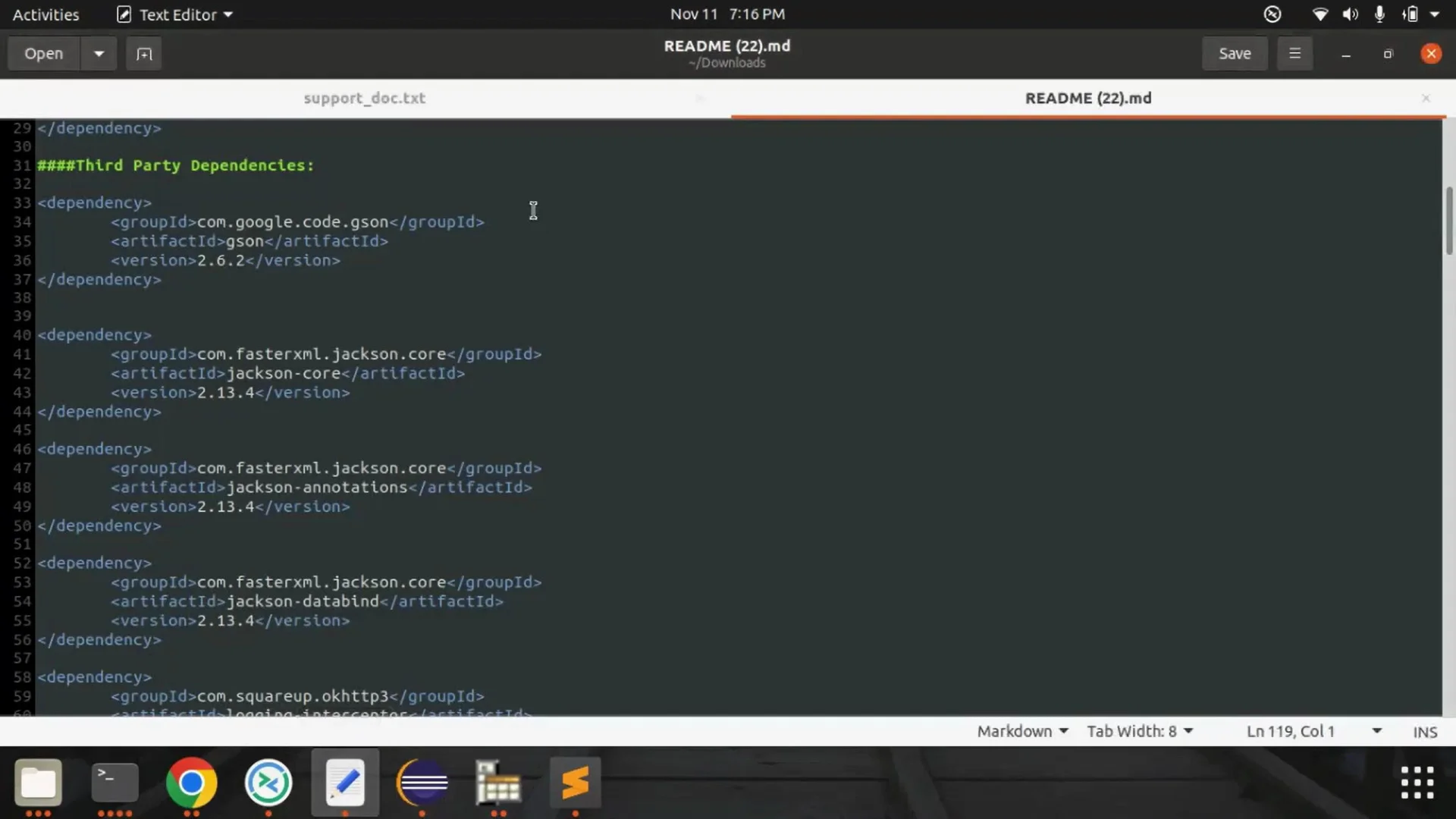
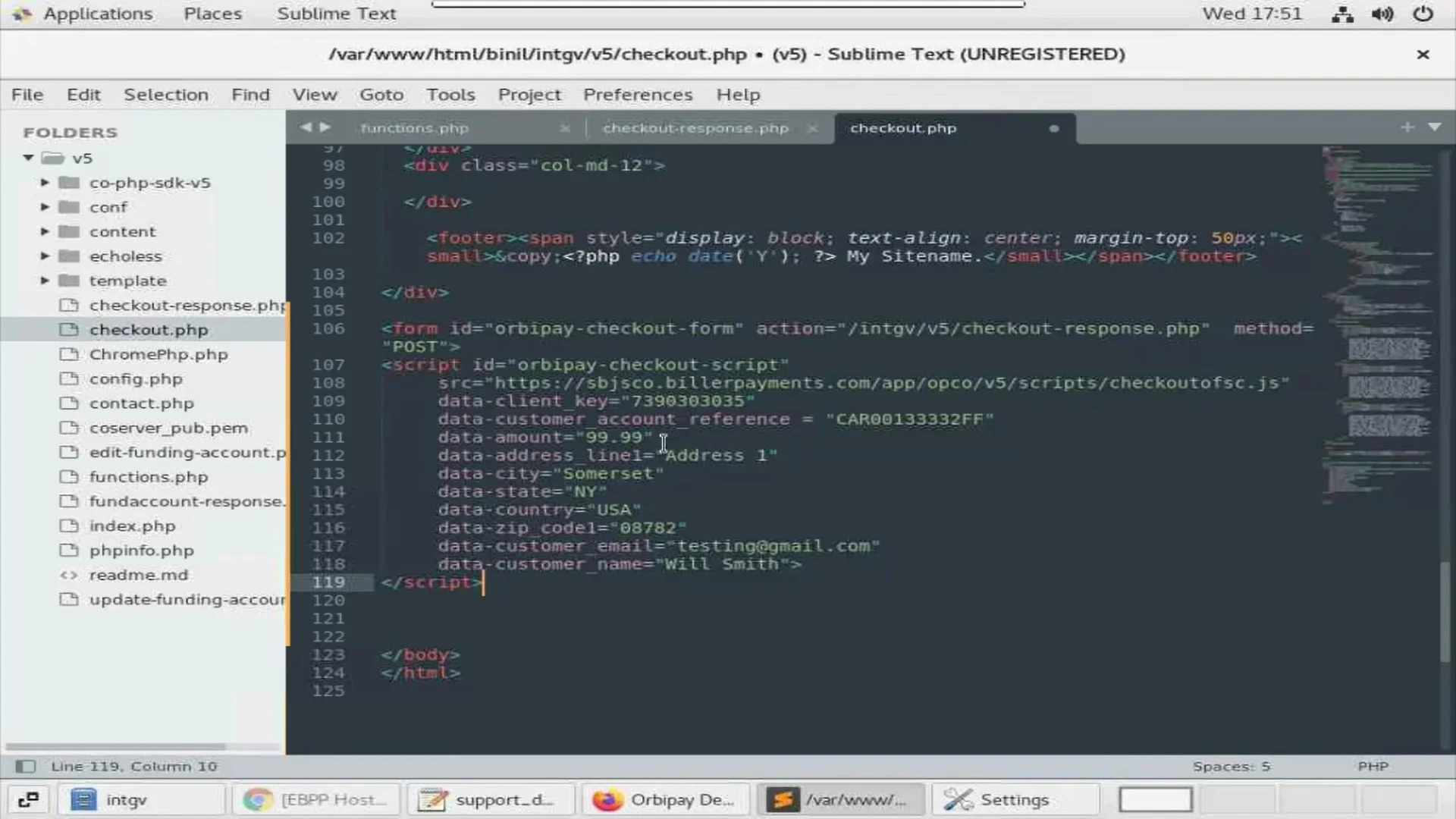
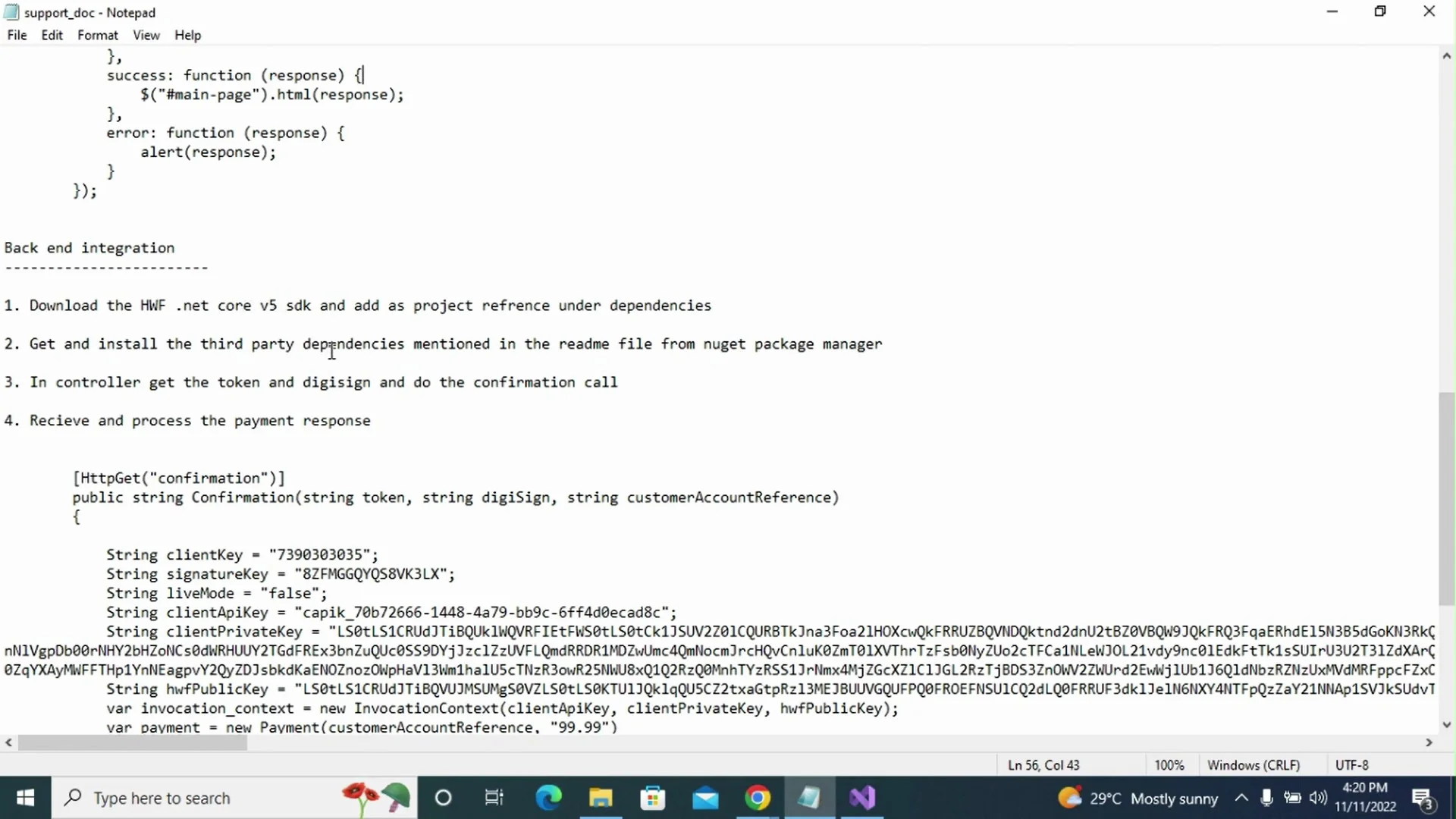
Note: The layout and design of the Developers portal might change from time to time. However, this would not have any implication on the guidance for integrating Hosted Web Forms, as provided in the videos.
Note: The layout and design of the Developers portal might change from time to time. However, this would not have any implication on the guidance for integrating Hosted Web Forms, as provided in the videos.
Note: The layout and design of the Developers portal might change from time to time. However, this would not have any implication on the guidance for integrating Hosted Web Forms, as provided in the videos.
Supported Browsers
Hosted Web Forms supports all recent versions of major browsers. For the better experience and security of the customers sensitive data we do not support the older versions of browser which does not support all the security criteria.
- IE 11 and above
- Microsoft Edge
- Google Chrome
- Mozilla Firefox
- Safari
SDKs
Download Client SDKs


